Using room microphones
Using room microphones for teleconferencing and through the speaker system
Desk microphones—For group Teams calls
 Step 1
Step 1

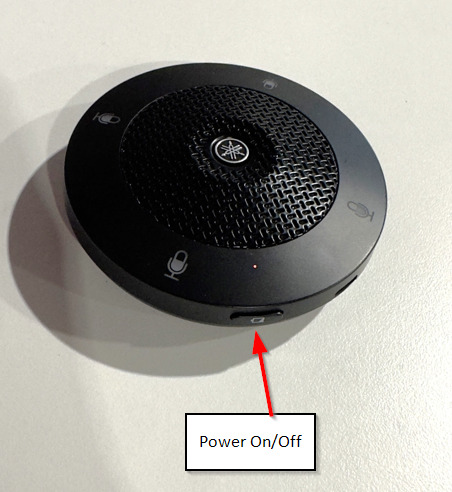
Unplug the disk shaped microphone from the USB cable and hold the power button for 5 seconds until the lights start flashing
 Step 2
Step 2
Once the microphone symbols is solid green it is now ready to use. To mute the microphone tap the microphone symbol and the lights will turn red.
Step 3Step 3
Place the desk microphone on the table as central as possible for all speaking participants
Step 4Step 4
For larger groups, use the 2nd desk microphone and space evenly among all speaking participants
Step 5Step 5
Once the meeting is finished, please hold down the power button for 5 seconds until the lights turn off and plug back in to keep charged for the next meeting
Handheld & Lapel – For presentations (In room and through Teams)
The handheld and lapel microphones are for presentations to groups of people in the room and over teams. The speakers will be used for these two microphone types as well as the audio being captured and sent to anyone on a Teams call.
Step 1Step 1
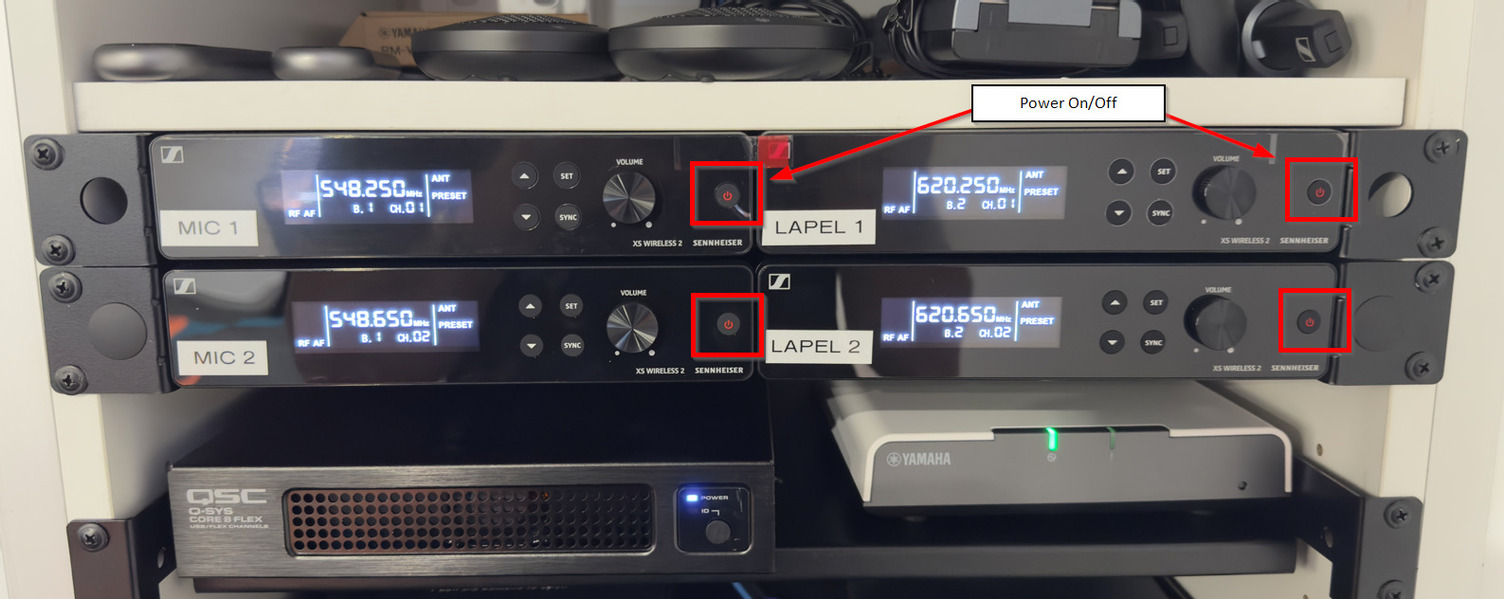
Turn on the microphone receiver for the microphone you will be using, or turn all four receivers on if you are not sure by pressing the red power button
 Step 2
Step 2
Power on the microphone
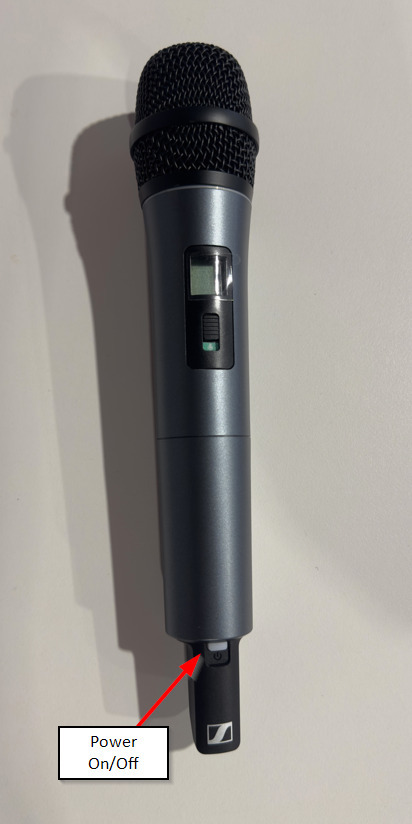
Handheld: Push the white button up towards the top of the microphone. The button will turn green when on
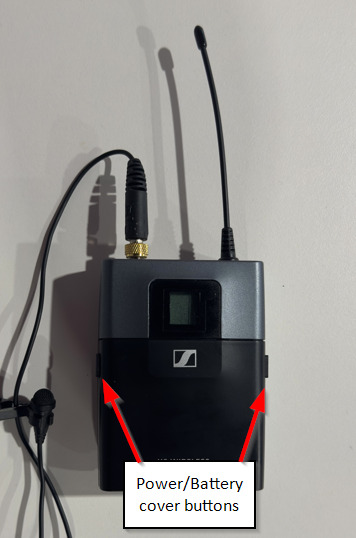
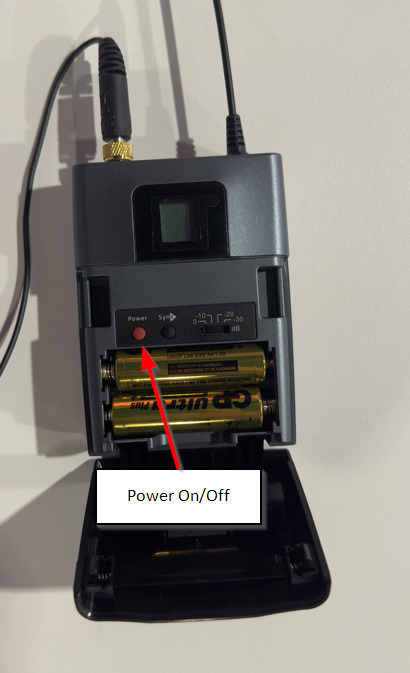
Lapel: Squeeze the two buttons on the side of the lapel belt pack and flip down the cover. Then push the red power button. The screen will display information when on
 Step 3
Step 3
When finished, please follow the above steps to power off the microphones and receivers.
Please note that all four microphones can be used at the same time if required.